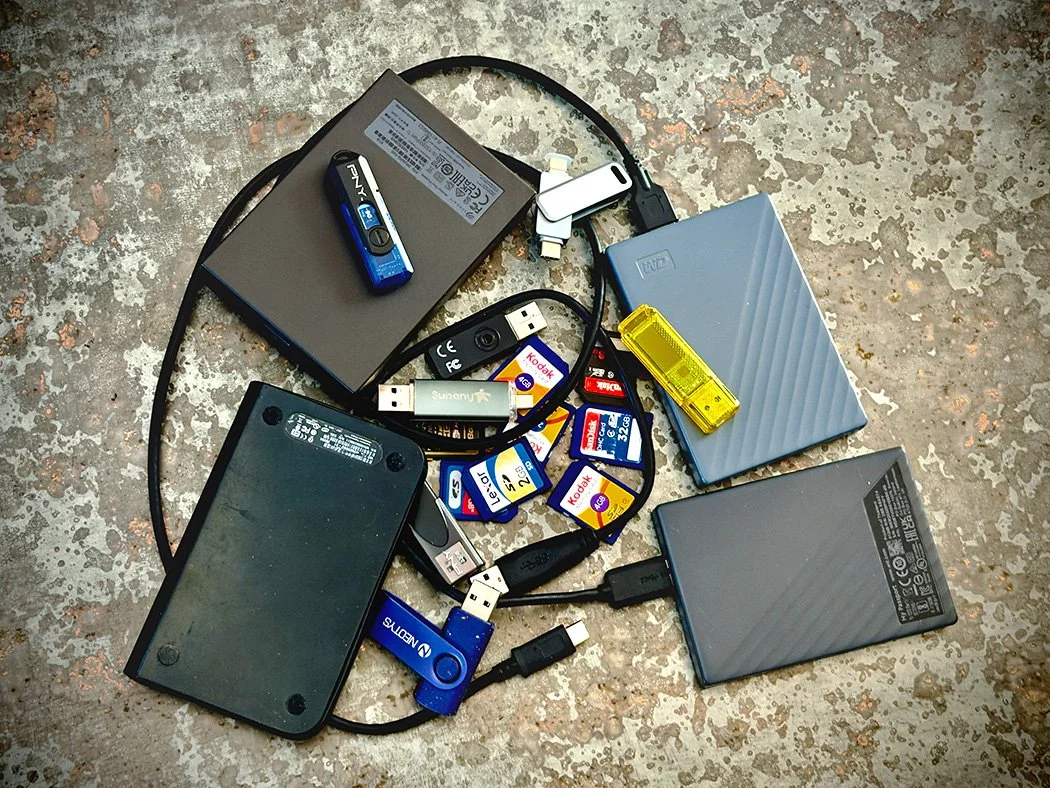
Memory cards, hard drives, and even your phone eventually run out of space.
I spend a lot of time thinking about images. Capturing them is the fun part. Managing where they live, how they're backed up, and whether I can actually access the original files? That's another story.
With advances in mobile phones, everyone is snapping photos! The technology is so good that you can print from these files, especially if the settings are at full resolution. Mobile phones can often be much easier to use than traditional DSLRs and mirrorless cameras.
If you use an iPhone, you've probably encountered Apple's storage warnings at the worst possible moment. You're trying to photograph something worth remembering, and suddenly your phone tells you there's no room left. Frustrating, especially when you're already paying for iCloud storage. Eventually, photo files that reside on your phone have to be dealt with if you want to keep them.
iCloud storage vs. iPhone storage: What's the difference?
Understand that iCloud storage and iPhone storage are two different things. Paying for more iCloud space doesn't automatically increase the physical storage capacity of your mobile device. iCloud Photos can help free up local space when you enable Optimize iPhone Storage, but your phone still needs room for apps, system files, and new photos and videos. If that space fills up, you can still run into trouble.
Apple's iCloud Photos service syncs your images across devices. When you turn on Optimize iPhone Storage, your full-resolution photos and videos are stored in iCloud while smaller, space-saving versions can remain on your phone. This can help, but it doesn't eliminate every storage problem. Apps, videos, messages, downloads, and system files also take up room. Apple explains how to manage device and iCloud storage.
Before paying for an even larger iCloud plan, check what's actually using your phone's space. Go to Settings, General, then iPhone Storage. If photos and videos are the main culprits, check that Optimize iPhone Storage is enabled under Settings, your name, iCloud, Photos.
One important warning: If you use iCloud Photos, deleting a photo from your iPhone also deletes it from iCloud and other devices synced with that library. iCloud Photos is a syncing service, not an independent backup. Keep a separate copy of your important images before deleting anything. Learn more about iCloud Photos.
The Amazon Photos alternative
If you're already paying for Amazon Prime, you may want to review the free Amazon Photos app. Eligible Prime members get unlimited full-resolution photo storage, along with 5 GB of video storage. That can be a useful way to back up a growing collection of family pictures, everyday snapshots, and behind-the-scenes moments.
But there's a catch! Downloading photos from a cloud service isn't always as straightforward as it sounds. Depending on the download method and file format, you may end up with a resized or converted image rather than the exact original. Before deleting anything from your phone or another backup, test a download and compare the pixel dimensions and file details with the original. If you shoot RAW files, edit photographs or plan to print them, preserving the original file matters. A smaller image may be fine for sharing online but less suitable for enlargements or future editing.
I think of Amazon Photos as a convenient place for an additional copy of everyday photographs, not a reason to abandon a carefully organized photo archive. For photographers, preserving full-resolution and original files matters. See Amazon Photos features.
The Manual Backup Method: Not Fancy, but Dependable
As a photographer, I'd rather spend a little time organizing files than discover years later that an original image is gone. Here's a simple backup workflow that doesn't rely on a single cloud service:
Transfer your photos. Import photos and videos from your iPhone to a Mac or PC. If you use iCloud Photos, make sure you're transferring full-resolution originals, not just smaller local versions.
Organize your files. Sort by year, month, event, or subject. Folders like 2026-10_Family are much easier to navigate than hundreds of files named IMG_4821.
Copy to an external drive. Store a separate copy on an external hard drive or SSD, apart from your phone and primary computer.
Verify the backup. Open photos, play videos, and confirm that original files, including RAW images, are intact.
Keep a second backup elsewhere. Use another drive stored separately or a cloud backup to protect against theft, damage, or drive failure.
Delete only after checking. Confirm your backup works before removing files. Remember, deleting a photo from an iCloud Photos-synced library also removes it from iCloud and other synced devices.
This takes more effort than automatic syncing, but you stay in control of your files. Set aside 20 minutes each month to transfer, organize, and back up new photos before your phone refuses to take another picture.
What about photos you want to keep forever?
Not every image needs the same level of protection. A screenshot of a shopping list and a photograph of a family gathering may have very different long-term value.
In my own photographic practice, I prioritize original files, finished client work, meaningful family photographs, and images that would be difficult or impossible to recreate. Those deserve more than one copy.
Cloud storage is convenient, and services such as iCloud Photos and Amazon Photos can make our images easier to access. But convenience isn't the same as a complete backup strategy.
My advice? Check your storage settings, understand what your cloud service actually saves, test your downloads, and keep an independent copy of the photographs you care about most.
The goal isn't simply to win the storage wars. It's to know where your images are, what quality they're stored in, and whether you'll be able to retrieve them when you need them.
The last thing any photographer wants is to miss a moment while fighting a storage warning. And the second-to-last thing? Discovering that the only copy of a favorite photograph isn't the original anymore.
